Support
Homepage — web app & browser extension
Questions, bug reports, or feature requests — once you're signed in with access, write to Support in the chat (it's in your conversations from the start). Or reach out any time at dominic.handl@hotmail.com.
Before you write in
- How does something work? The documentation explains the app one window at a time, in English, German and Spanish, and the ? button at the top right of the homepage lists every hotkey and the tips (or tap Q). If a page there is missing something, is wrong or out of date, tick "Something missing, wrong or outdated?" at its top and leave a comment right on it (needs Full Access).
- The core dashboard (New Tab page, containers, quick-add) works with no account (it does need an internet connection to load) — most issues there are just a browser refresh away (and sometimes a hard refresh away — [Ctrl]+[Shift]+[R] on Windows/Linux, [Cmd]+[Shift]+[R] on Mac).
- Signed-in features (chat, backups, custom icons, Tasks) need a GitHub sign-in; if something there looks stuck, mention whether you were signed in when it happened.
- Can't add another page, container, icon, backup, task, or image? You've reached a limit of your account — a message tells you which one and how to make room. Nothing you already have is deleted: existing pages, containers, icons, backups, and profiles stay usable. Every limit (and the difference between Standard and Full Access) is listed on the Plans & Limits page; you can also open it from Settings → Account. On Standard, "Ask for Full Access" there (or in the limit message) sends the admin a request.
- Links missing or different on another computer? Your pages, containers, links and click counts sync between your devices while you're signed in, like your tasks - a change shows up on the other device when Homepage opens there or you go back to its tab. Both can be used at the same time; nothing one adds is lost because of the other - if both change the same page at nearly the same moment, one device's change follows once you pause there for a few seconds. Still missing a link? Open Backup History (Tools → History): backups marked This device came from the computer you're on, the others from your other one - the Device and Browser columns show which. Open one from before the links went missing and pick Only the page "…" to bring back just that page - its links are added to what the page has now, on all your devices.
- See our Privacy Policy for what data is stored and how to export or delete it.
-
Microsoft Edge turned the extension off? Edge
automatically switches off extensions from the Chrome Web Store that
change the New Tab page ("This extension has been turned off to
protect your browser settings"). To use it anyway, open
edge://extensionsand switch Homepage Dashboard back on, or click Turn on in Edge's pop-up.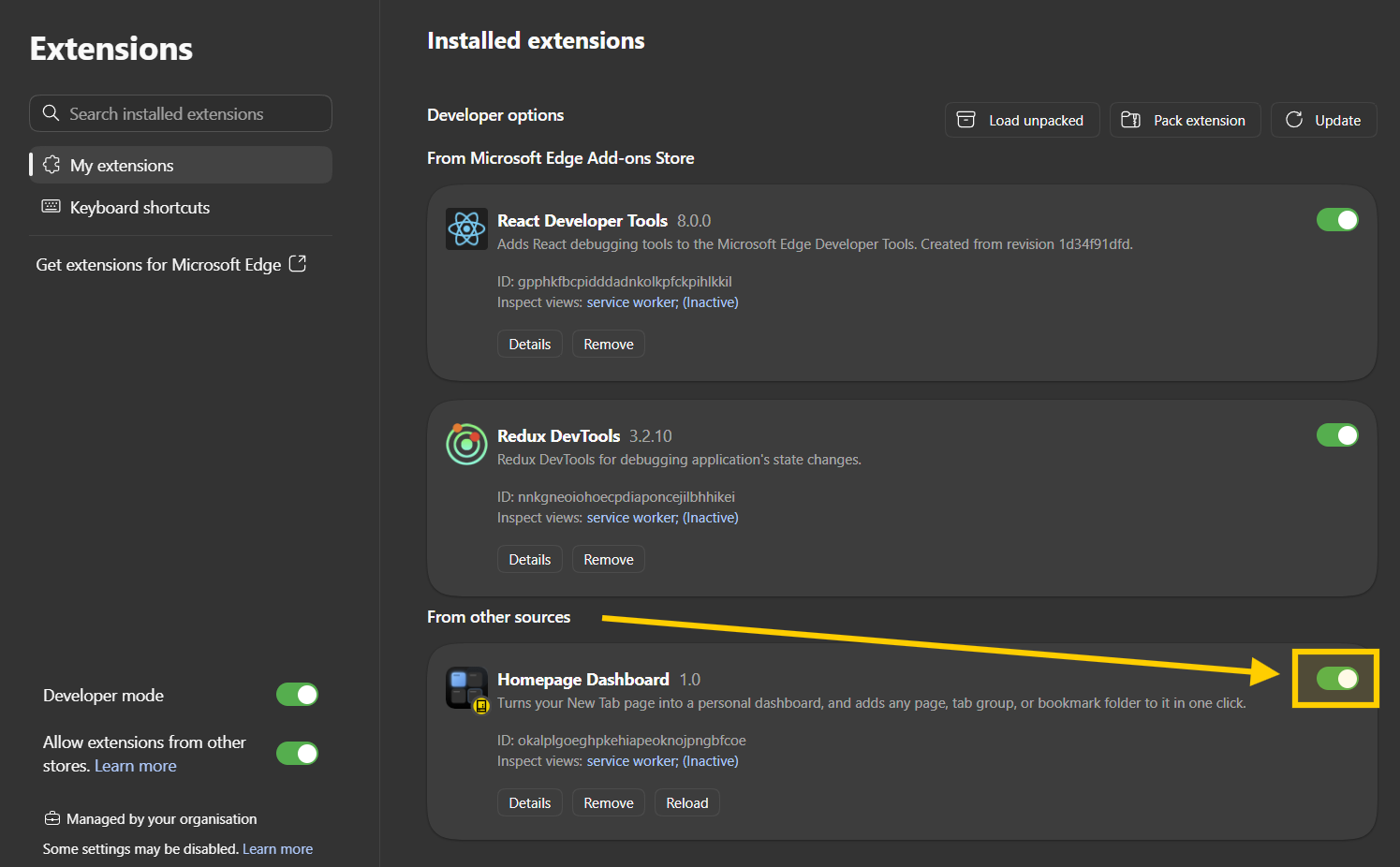
edge://extensions- switch Homepage Dashboard back on. -
A
file://link in a task only copies its path? Browsers don't let websites open local or network files, so without the extension the path is copied for you to paste into Explorer or the address bar. To open them with one click, openchrome://extensions(oredge://extensions), click Details on Homepage Dashboard and turn on Allow access to file URLs.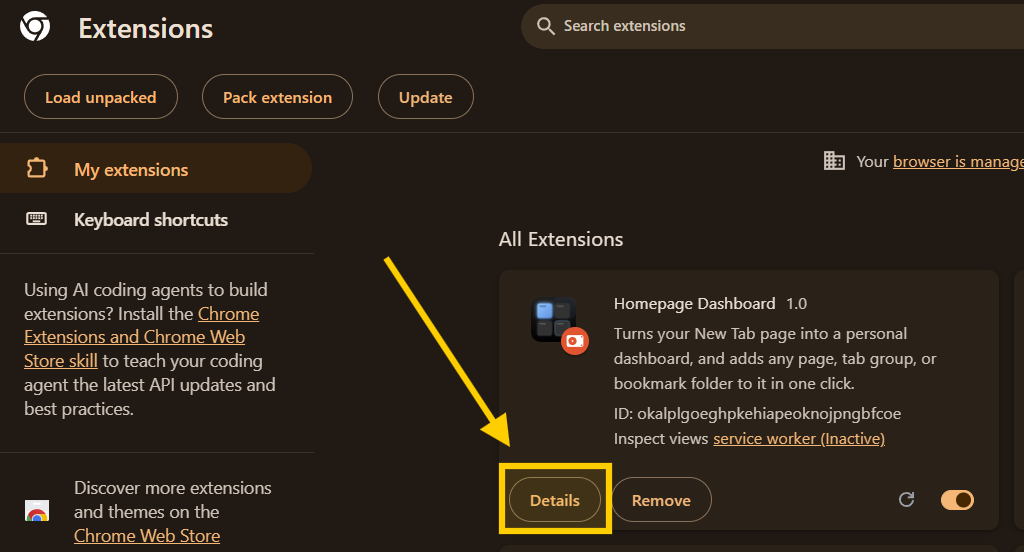
1. Click Details on Homepage Dashboard. 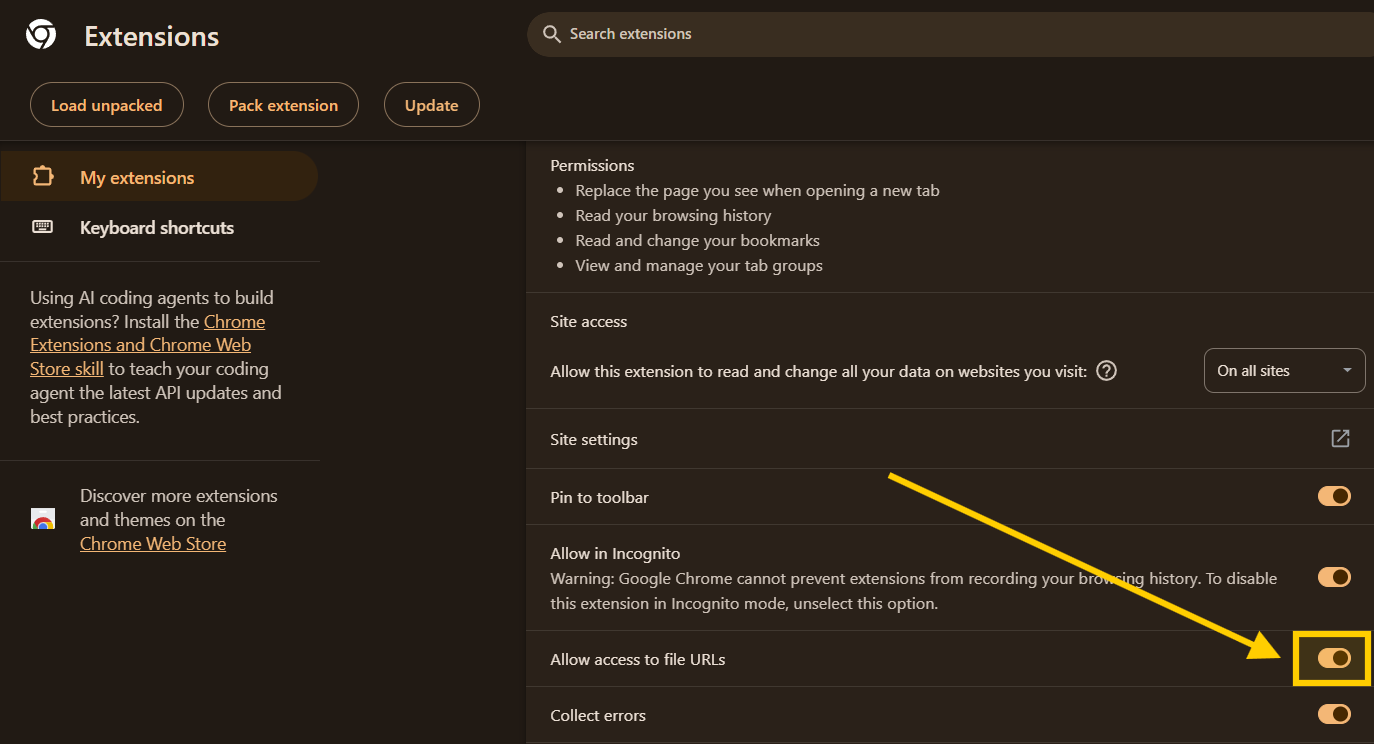
2. Turn on Allow access to file URLs. - A banner says your tasks or links couldn't be synced? Your changes are safe on this device and are retried automatically - the banner goes away once syncing works again. If it keeps coming back, press Turn on Debug in the banner, repeat what you did, then copy the debug log (bottom left) and send it with a bug report. Settings > Account shows when they were last synced.
- A link doesn't open on the screen you chose, or "Choose a screen..." does nothing? The browser has to allow this page to see your screens. Click the icon left of the address, open Site settings and set Window management to Allow, then choose the screen again. Screens can only be chosen in Chrome, Edge, Brave and Opera.
-
A link set to incognito opens in a normal window or
tab? Only the browser extension can open incognito windows.
Make sure it's installed and allowed there: open
chrome://extensions(oredge://extensions), click Details on Homepage Dashboard and turn on Allow in Incognito. A link set to a new tab or its own window and incognito needs version 1.3 of the extension - Settings' extension tab shows which one you have. -
The extension is still on an older version? Your
browser updates extensions on its own, but that can take a while.
Settings' extension tab shows which version you have and which one
is the newest. To update right away, open
chrome://extensions(oredge://extensions), turn on Developer mode and click Update at the top, then reload the homepage.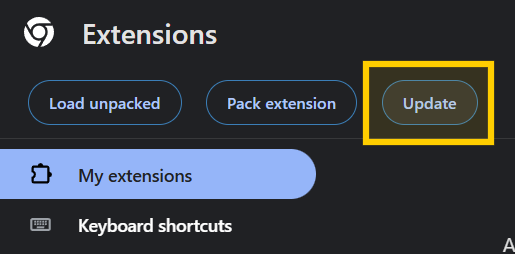
chrome://extensions- Update shows once Developer mode is on.